Set up an automatic reply for one of your email addresses.
Autoresponders are useful for holidays, absences or simply acknowledging that a message has been received.
Open yourdomain.extension/cpanel and sign in with the cPanel details from your Welcome Email.
Find Autoresponders in the Email section of cPanel and choose to add a new autoresponder.
Leave the Character Set as utf-8. Enter the email address that should send the automatic reply and select the correct domain.
The Interval controls how many hours cPanel waits before sending another autoresponse to the same email address. This helps prevent the same sender receiving your automatic reply repeatedly. Setting this to 1 means the same sender can receive the autoresponse again after one hour. For most situations, leaving this set to 1 hour is a good standard setting.
Enter the From name, Subject and the message you want people to receive. Keep the message clear and include alternative contact details if appropriate.
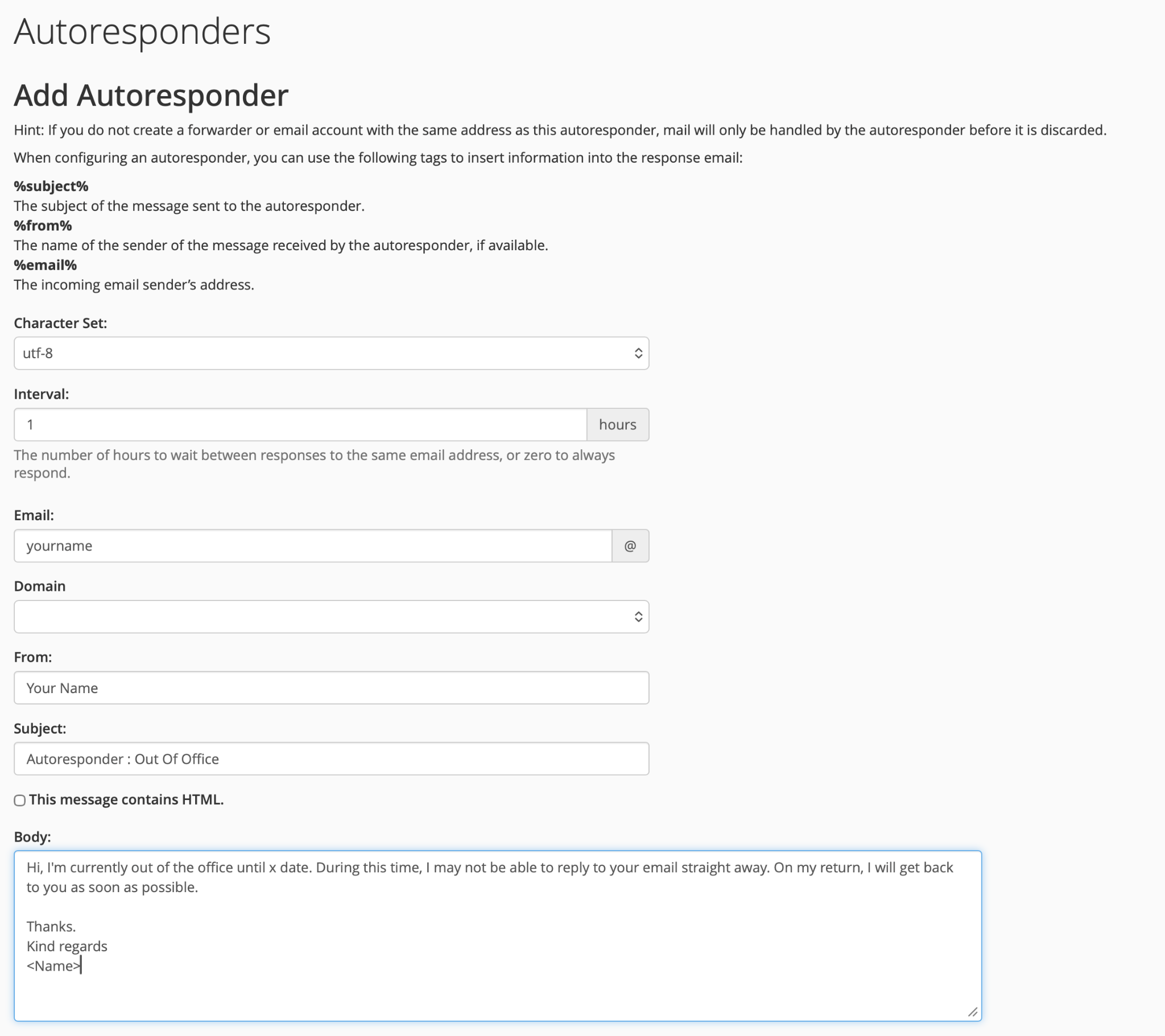
Example of the main cPanel Autoresponder settings. The domain shown in this example has been removed for privacy.
Under Start, choose Immediately or set a custom start date and time. Under Stop, choose an end date and time if the autoresponder is only needed temporarily.
When everything looks correct, click Create.
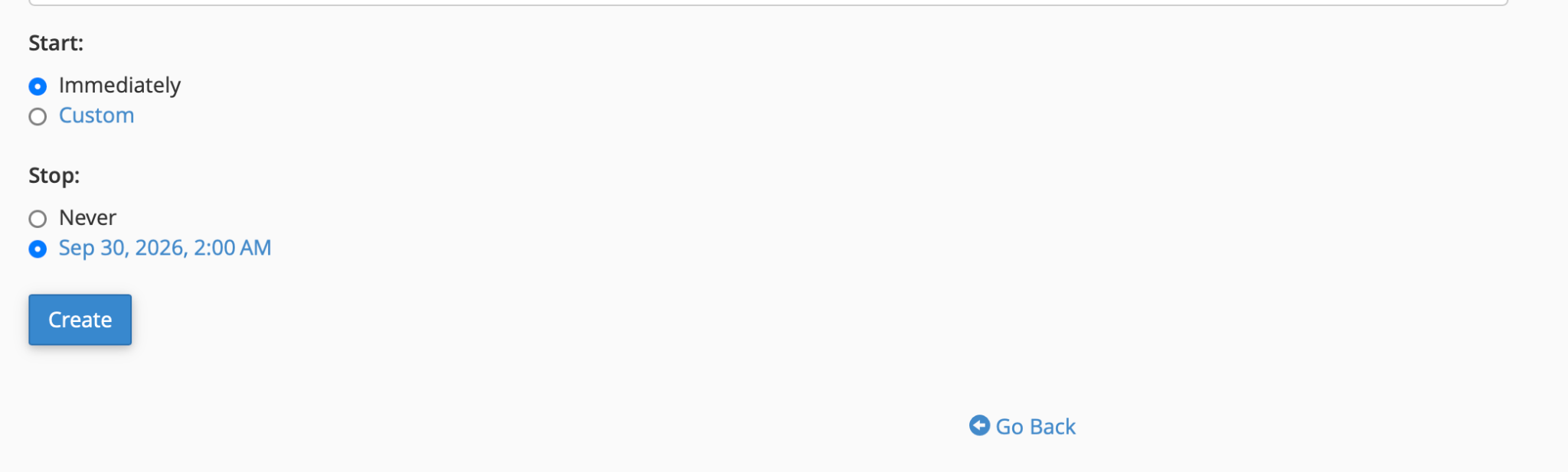
Choose when the autoresponder should start and stop, then click Create.
If you'd like a hand setting up an autoresponder, contact us and we'll point you in the right direction.
Contact Support