Add a new mailbox to your HostingServicesWA account.
Add another mailbox to your domain from within cPanel.
Open yourdomain.extension/cpanel and sign in using the cPanel details from your Welcome Email.
Find Email Accounts in cPanel and choose the option to create a new email account.
Enter the name you want before the @ symbol, choose the appropriate domain if more than one is available, and set a strong password.
For most HostingServicesWA accounts, setting Storage Space to Unlimited is generally fine. This does not give the mailbox unlimited space beyond your hosting plan — it simply allows the mailbox to use the available storage within your hosting account as required.
For Automatically Create Folders for Plus Addressing, we recommend selecting Do Not Automatically Create Folders unless you specifically need plus addressing.
You can leave Send a welcome email with instructions to set up a mail client ticked.
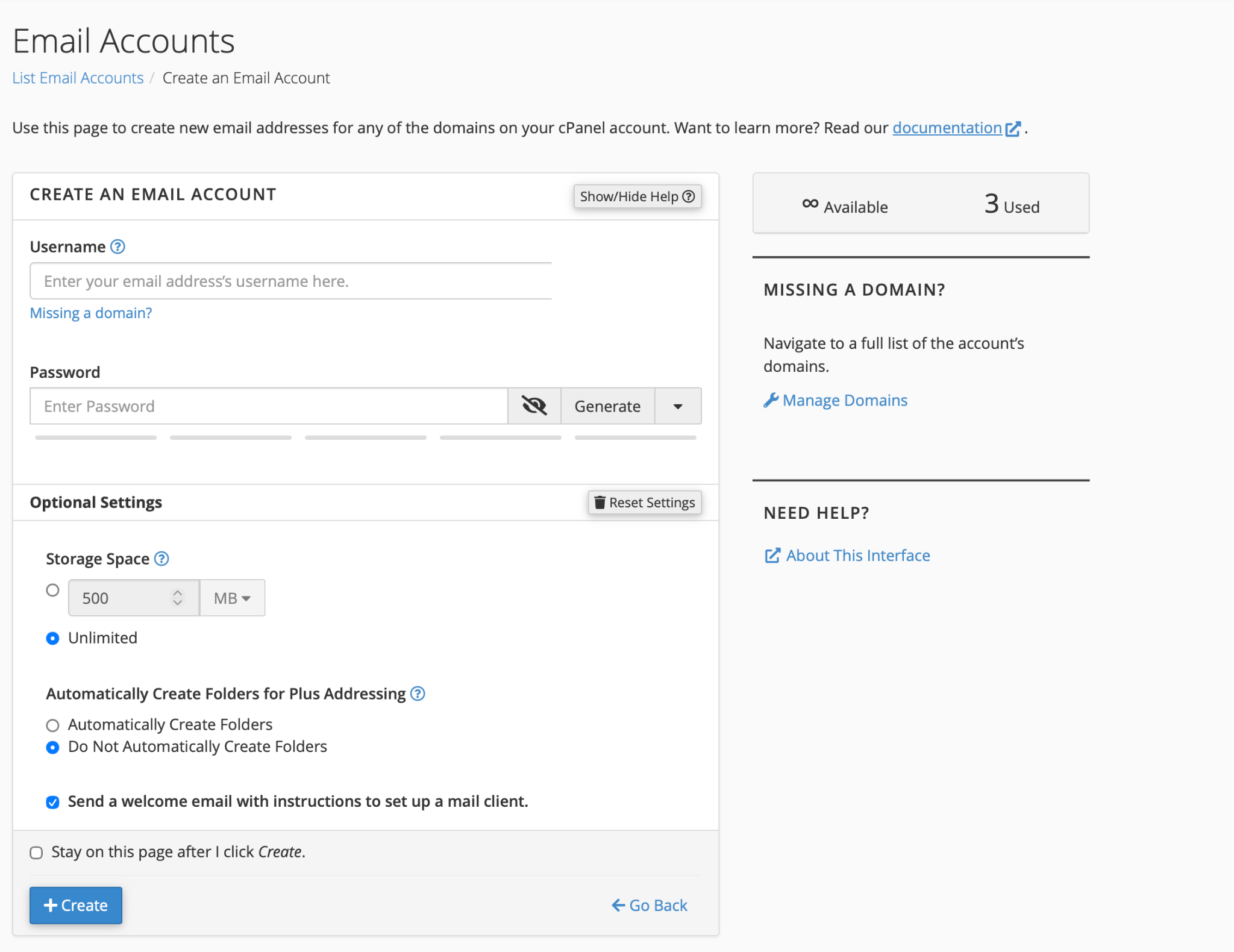
Example of the cPanel Create an Email Account screen. The domain shown in this example has been removed for privacy.
Click + Create. Once the mailbox has been created, use our Email Setup guide to add it to your Mac, iPhone, iPad or Outlook.
Email Setup Guides →If you're unsure how much mailbox space to allocate or would like help creating an address, contact us.
Contact Support